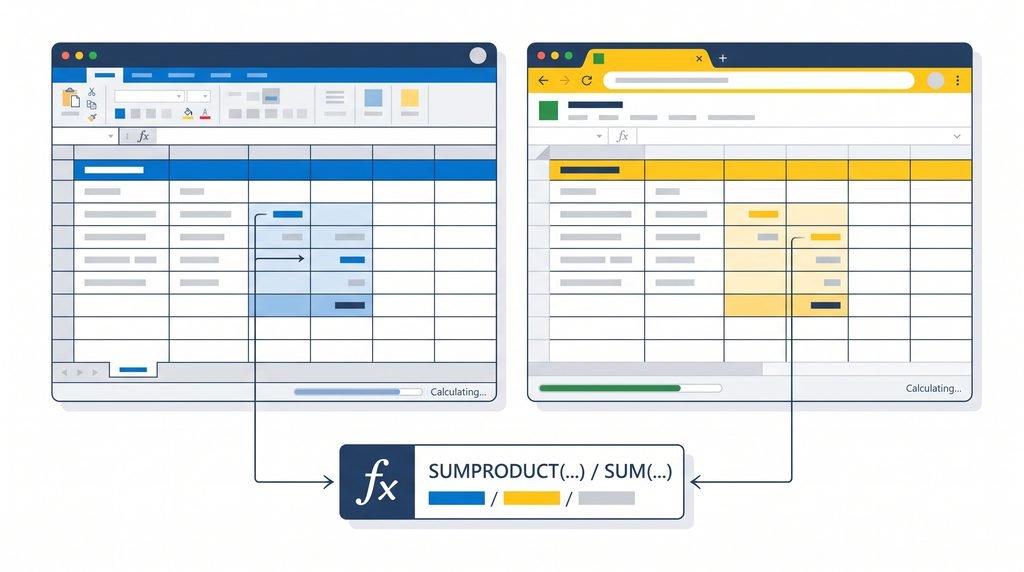
A weighted average in Excel gives some values more importance than others. In Excel or Google Sheets, you can calculate one quickly with a simple formula or with SUMPRODUCT.

For example, if a final exam counts for 40% of a grade while a quiz counts for only 10%, you should not treat their scores equally. The weighted average accounts for those different weights.
What Is a Weighted Average?
A weighted average is an average where each value is multiplied by its assigned weight before the results are added together.
The basic formula is:
Weighted Average = Σ(Value × Weight) ÷ Σ(Weights)
When the weights already add up to 1 or 100%, the calculation becomes:
Weighted Average = Σ(Value × Weight)
This is useful for grades, project scoring, financial analysis, survey data, business metrics, and many other situations where some items matter more than others.
Weighted Average Example in Excel
Suppose five components make up a student’s overall score:
| Component | Weight | Score | Weighted Score |
|---|---|---|---|
| Assignment | 20% | 85 | 17.00 |
| Quiz | 15% | 90 | 13.50 |
| Project | 25% | 88 | 22.00 |
| Midterm | 20% | 82 | 16.40 |
| Final Exam | 20% | 92 | 18.40 |
| Total | 100% | 87.30 |
The calculation is:
(85 × 0.20) + (90 × 0.15) + (88 × 0.25) + (82 × 0.20) + (92 × 0.20)
= 17 + 13.5 + 22 + 16.4 + 18.4
= 87.30
So the weighted average is 87.30.
Notice that the final result is not simply the average of the five scores. The project, for example, has a 25% weight, so its score has a larger effect than the quiz’s 15% weight.
How to Calculate a Weighted Average in Excel
You can organize your spreadsheet into three main columns:
- Weight
- Score
- Weighted Score
For the example above, you could place the weights in cells B2:B6 and the scores in C2:C6.
In D2, enter:
=B2*C2
Then copy the formula down through D6.
Finally, add the weighted scores:
=SUM(D2:D6)
Because the weights total 100%, the result is the weighted average: 87.30.
A simpler Excel formula: SUMPRODUCT
You can also calculate the result in one cell with:
=SUMPRODUCT(B2:B6,C2:C6)
SUMPRODUCT multiplies corresponding values in the two ranges and then adds the results.
For this example:
=SUMPRODUCT(B2:B6,C2:C6)
returns 87.30.
This is often the most convenient formula when your weights already total 100%.
What If the Weights Do Not Add Up to 100%?
This is an important situation to handle correctly.
Suppose you have these values:
| Item | Weight | Score |
|---|---|---|
| A | 2 | 80 |
| B | 3 | 90 |
| C | 5 | 70 |
The weights total 10, not 100%.
You can still calculate the weighted average by dividing the sum of the weighted values by the sum of the weights:
=SUMPRODUCT(B2:B4,C2:C4)/SUM(B2:B4)
The calculation is:
(2×80 + 3×90 + 5×70) ÷ (2+3+5)
= 905 ÷ 10
= 90.5
The division by the total weight is what normalizes the result.
Weighted Average in Google Sheets
The same basic approach works in Google Sheets.
If your weights are in B2:B6 and your values are in C2:C6, use:
=SUMPRODUCT(B2:B6,C2:C6)
when the weights total 100%.
If the weights are not normalized, use:
=SUMPRODUCT(B2:B6,C2:C6)/SUM(B2:B6)
Google Sheets supports SUMPRODUCT, so you can use essentially the same formulas as Excel.
Weighted Average vs. Simple Average
The difference is straightforward:
Simple average: every value has equal importance.
Weighted average: values can have different levels of importance.
Consider these three scores:
- 70
- 80
- 100
A simple average is:
(70 + 80 + 100) ÷ 3 = 83.33
But suppose their weights are 20%, 30%, and 50%:
(70 × 0.20) + (80 × 0.30) + (100 × 0.50)
= 14 + 24 + 50
= 88
The weighted average is therefore 88, considerably different from the simple average of 83.33.
The difference occurs because the 100 score has the largest weight.

Common Excel Mistakes With Weighted Averages
1. Using AVERAGE when the values have different weights
The formula:
=AVERAGE(C2:C6)
treats every score equally.
That is not a weighted average.
2. Forgetting to convert percentages correctly
If a component is worth 20%, Excel should generally use the percentage value 20%, which represents 0.20.
Multiplying a score by 20 instead of 20% produces a completely different result.
3. Using weights that do not match the values
Each weight must correspond to the correct value.
For example, if B2 contains the weight for an assignment, C2 should contain that assignment’s score.
4. Forgetting to divide by total weight
If your weights do not total 100% or 1, use:
=SUMPRODUCT(weights,values)/SUM(weights)
Otherwise, the result will not be normalized correctly.
5. Mixing percentages and whole-number weights
A spreadsheet can use weights such as:
- 20%, 30%, 50%
or:
- 2, 3, 5
But be consistent with the formula you’re using.
When Should You Use a Weighted Average?
Weighted averages are useful whenever some observations contribute more than others.
Common examples include:
- Course and exam grades
- Employee performance scoring
- Project evaluation
- Investment portfolio calculations
- Business performance metrics
- Survey analysis
- Product scoring
- Budget and cost analysis
- Forecasting
- Supplier evaluation
The key question is simple: Do all values have equal importance?
If yes, a simple average may be enough.
If no, a weighted average is usually more appropriate.
Quick FAQ
What is the formula for a weighted average in Excel?
A common formula is:
=SUMPRODUCT(weights,values)/SUM(weights)
If the weights already total 100%, you can use =SUMPRODUCT(weights,values).
Can I calculate a weighted average in Google Sheets?
Yes. Google Sheets supports SUMPRODUCT, so the same weighted-average formulas can be used.
Why use SUMPRODUCT for weighted averages?
SUMPRODUCT multiplies corresponding weights and values and adds the products, making it a convenient one-cell solution.
Do weighted-average percentages have to add up to 100%?
Not necessarily. If they do not, divide the sum of the weighted values by the sum of the weights to normalize the result.
Is a weighted average the same as an average?
No. A simple average gives every value equal importance, while a weighted average gives different values different levels of influence.
Try the Free Weighted Average Template
If you regularly calculate weighted scores, setting up the spreadsheet once can save time.
You can download our simple Excel template and replace the sample values with your own weights and scores.
The template includes both a step-by-step weighted-score calculation and a SUMPRODUCT version.
For calculations involving Philippine academic grades, you can also use the relevant GWA calculator tools on GWA Calculator PH.
The important rule to remember: multiply each value by its weight, add the results, and m